

Editorbet App and Mobile Version
There are three ways to play on your phone: the mobile browser, a PWA shortcut on the home screen and an APK file for Android. This guide shows which one suits you and how to set it up step by step.
18+ · Play responsibly
Editorbet Mobile Version Overview
Most people looking for an Editorbet app or an Editorbet download link simply want to reach their account from a phone as easily as from a computer. The platform offers three ways to do this: the mobile site that opens in your phone’s browser, a PWA (Progressive Web App) shortcut added to the home screen, and a separate APK file for Android devices. All three use the same account, the same balance and the same cashier; switching from one to another never requires a new registration.
The focus of this guide is to make clear which option suits whom. A player who follows the frequent promotions and announcements is often well served by a PWA shortcut, while Android users who want a more app-like experience tend to choose the APK version of the Editorbet casino app. That is why searches for an “Editorbet APK download” are common: Android users know a separate file exists and look for it. Where the file comes from, however, is decisive for security, and that is covered in detail below.
The mobile version uses the same menu layout on Editorbet Android devices and on iPhones: shortcuts to home, casino, sign-up, bonuses and the cashier along the bottom, with the account menu and notifications at the top. Promotion and update announcements arrive on mobile through the notification icon and the official Telegram channel.
Mobile Browser vs PWA App
The mobile browser is the simplest option: type the current link into the address bar, log in with your account details and start using the site. The mobile login screen has the same fields as on desktop, and anyone using a password manager can fill them in with one tap. The downside is having to open the browser and find the right address every time, and old bookmarks stop working when the address changes.
A PWA is a shortcut to the site added to your home screen, but it offers more than an ordinary bookmark: it opens full screen, hides the browser bars and looks like an app. No installation file is downloaded, so no extra permissions are granted on the device, and updates arrive automatically with the site. For Editorbet iOS users this is the only app-like option, because an APK cannot be installed on an iPhone.
| Feature | Mobile browser | PWA shortcut | Android APK |
|---|---|---|---|
| Setup | None | Add to home screen | Download and install file |
| Supported devices | All | iPhone and Android | Android only |
| Updates | Automatic | Automatic | New version installed manually |
| Extra permissions | None | None | Install from unknown sources |
| Address changes | New link needed | Often needs re-adding | May redirect inside the app |
| Notifications | With browser permission | Depends on device support | With app permission |
There is an important difference between the three options when the address changes. The browser and the PWA shortcut are tied directly to the domain, so when the address changes you need to take the new link from the official channel and open it again. The APK often redirects to the current address internally, but this behaviour can vary between versions and is never guaranteed. Whichever option you choose, following the pinned message on the Telegram channel is the most reliable backup.
A practical rule of thumb: for a player who logs in a few times a week, the browser or a PWA is enough. An Android user who bets live every day may find the APK more convenient. iPhone users searching for a download should be looking for the PWA shortcut rather than a file.
Mobile Casino Interface Review
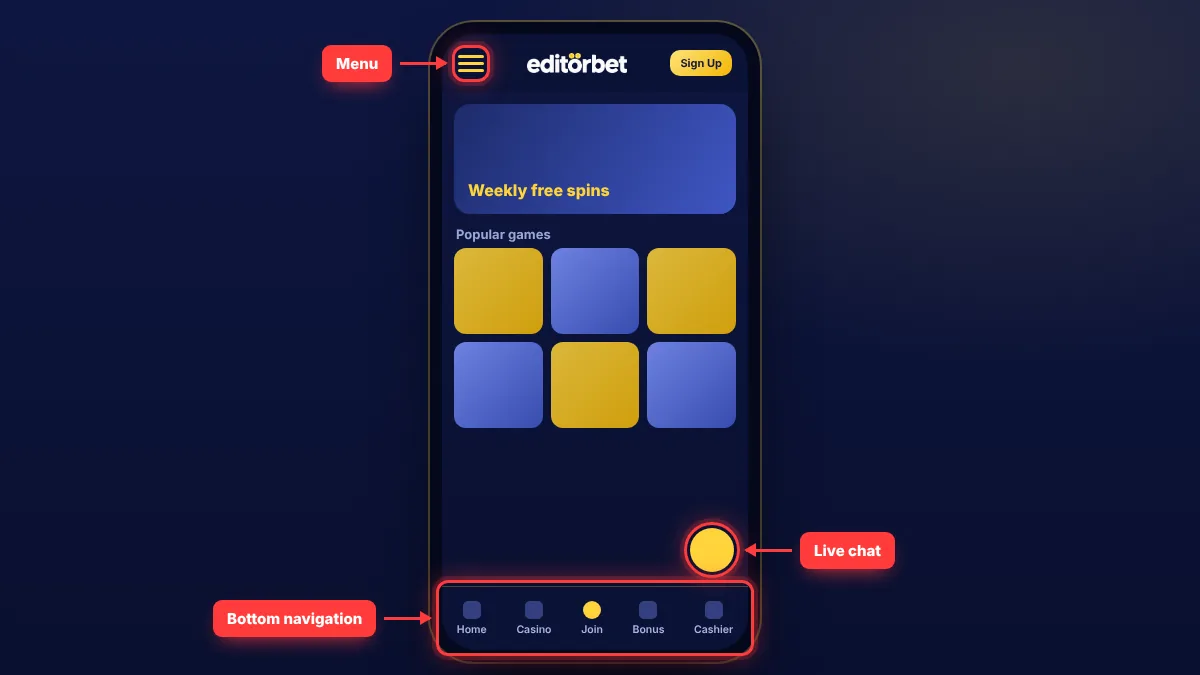
The mobile interface is designed for portrait use. The home page shows promotion banners at the top, popular games and live matches in the middle, and a fixed navigation bar at the bottom. In the game lobby the filters move into a drop-down menu, and searching by provider, game type or the “new” tag is as easy as on desktop.
The areas highlighted in the screenshot are the parts used most on mobile: the menu button in the top left gives access to every section, and the bottom bar switches quickly between the casino, bonuses and the cashier.
The cashier and account settings sit inside the menu, and the counter on the notification icon shows unread promotion announcements. The live chat button stays fixed in the bottom right corner on every screen.
Slots can be played in landscape or portrait, and many newer games are optimised for portrait screens. At live casino tables, video quality adjusts automatically to your connection speed; you can lower it manually in the settings to save mobile data. Some older games may open with small buttons on touchscreens; turning the phone sideways makes them easier to use.
The Editorbet app download link appears in the “Mobile app” section at the bottom of the mobile site. That section highlights the APK option if your device runs Android and the add-to-home-screen instructions if it is an iPhone. Making sure the link sits on the site’s own page is the first protection against fake files. The Editorbet download on that page is the only recommended source.
Fast Deposits from Your Phone
On mobile the cashier offers the same methods as on desktop: bank transfer, cryptocurrencies and the e-wallets listed in the cashier. In everyday mobile use the most practical options are usually a transfer from your banking app and a transfer from a crypto wallet app. Inside the Editorbet casino app the cashier steps are identical; only the layout of the screen changes.
- 01
Open the cashier
Tap the cashier icon in the bottom bar or the Deposit section of the account menu.
- 02
Choose a method
Select bank transfer, crypto or an e-wallet; the minimum amount is shown on the method card.
- 03
Set the amount and offer
Enter the amount; leave the offer box empty if you do not want a bonus.
- 04
Complete the payment
Send the payment to the account or wallet address shown; for crypto, check that the network matches the one in the cashier.
- 05
Check your balance
Once confirmed, the balance updates at the top of the screen; if it is delayed, contact live chat with the transaction number.
The most common mistake on Editorbet mobile is selecting an incomplete crypto address when copying it. After copying, compare the first and last four characters in your wallet app with the address in the cashier to remove this risk. Limits, processing times and withdrawal steps are explained in detail on the payments page.
APK Safety and Permissions
An APK is an app file installed on Android outside Google Play. During installation Android therefore asks for permission to “install apps from unknown sources”. This permission should be granted only to the browser you used to download the file and only for the duration of the installation; switching it off afterwards is a good habit.
Third-party sites that appear when you search for an Editorbet APK download may offer a modified version of the file. A modified APK can collect your login details or install unwanted software on the device. For a safe installation, pay attention to the following:
- Source: Download the file only from the site’s own mobile app section; do not open files sent by message.
- Permissions: A casino app has no reason to access your contacts, SMS or call history; do not install a file that asks for these permissions.
- Size and name: Stop the installation if the file name and size do not match what the site states.
- Play Protect: If Android shows a scan warning, take it seriously and download the file again from the site.
On the date of this guide it could not be confirmed that the platform’s app is listed on Google Play or the App Store. Apps with the same name in the stores may not be official, so always open the download link from inside the site.
Editorbet Android Installation Steps
Installing on Android takes a few minutes and is done once; later versions are usually announced inside the app. Before installing, make sure there is enough storage space on the phone and that the operating system is up to date. The current version of the app file is always in the site’s mobile section.
- 01
Open the mobile site
Go to the current address in your phone’s browser and scroll to the mobile app section at the bottom of the page.
- 02
Download the APK file
Tap the download button for Android; the file is saved to the Downloads folder.
- 03
Allow the installation
If Android asks for permission when you open the file, allow installs from unknown sources for the browser you used only.
- 04
Complete the installation
Tap Install; when it finishes, the app icon appears on your home screen.
- 05
Switch the permission off
In Settings, turn off the unknown-sources permission you gave the browser.
- 06
Log in
Open the app and log in with your existing username and password; do not open a new account.
New versions usually come with an announcement: an update prompt appears when the app opens, or the Telegram channel posts that a new APK has been released. There is no need to uninstall the old app when updating; the new file installs over it and keeps your session. Only if a signature mismatch warning appears — meaning the file may have come from a different source — should you stop and download the file again from the site’s own section. This warning is an important safeguard against installing a fake file.
If the app from an Editorbet app download will not open or shows a “parse error”, the file may not have downloaded completely; deleting it and downloading again usually fixes the problem. If the browser blocks the download, allow that file type in its download settings.
Editorbet on iOS (iPhone) Guide
An APK cannot be installed on an iPhone or iPad; on Apple devices the app-like experience comes from the PWA shortcut. This method needs no file download, opens no extra permissions on the device and refreshes itself as the site is updated. Setting up Editorbet iOS access takes less than a minute.
- 01
Open Safari
The add-to-home-screen feature works most reliably in Safari; go to the current address in Safari.
- 02
Tap the Share menu
Tap the square-with-arrow icon at the bottom of the screen.
- 03
Choose Add to Home Screen
Scroll down the menu, tap Add to Home Screen and give the shortcut a name.
- 04
Open the shortcut
Tap the new icon on your home screen; the site opens full screen.
- 05
Log in
Sign in with your username and password and, if you wish, save them to iCloud Keychain.
When the address changes, the PWA shortcut may keep pointing to the old one. In that case, delete the old icon and repeat the same steps with the new address; your account, balance and history are not affected.
Live Betting on Mobile
Live betting is the most used section on mobile. In-play matches are shown in a separate tab of the match list, and each match page shows the live score, statistics and, where available, a live stream or animated tracker. Because odds update within seconds, a stable connection matters.
These settings make a difference when betting live on mobile:
- Odds change confirmation: Whether “accept odds changes” is switched on decides whether your bet slip is confirmed.
- Quick bet: Where available, it places a fixed stake with one tap; keep the amount low to limit accidental taps.
- Cash-out: Settling a bet before the match ends is done from the bet history on mobile; the amount offered changes with the odds.
On the Editorbet mobile app for Android, the live betting screen is the same as in the browser; the differences are more regular notifications and faster loading from the background. If you came here after an Editorbet download from the site, nothing changes in how bets are placed. Full live betting features are described on the games and betting page.
Mobile Data and Battery Use
Mobile data use varies widely depending on the section. Playing slots and building bet slips uses little data, while live casino tables and live match streams use much more because of continuous video. The exact amount depends on connection quality and the chosen picture setting.
| Activity | Data use | Battery impact | Tip |
|---|---|---|---|
| Bet slips and odds | Low | Low | Fine on mobile data |
| Slot games | Low to medium | Medium | High graphics drain the battery faster |
| Live casino | High | High | Use Wi-Fi where possible |
| Live match streams | High | High | Lower the picture quality |
Two settings are especially useful for players with limited data plans. First, set the video quality at live casino tables to low instead of automatic; this does not change the game, only the sharpness of the picture. Second, use the animated match tracker instead of the live stream; animation uses far less data and still shows events such as score, corners and cards in real time.
To save battery, lower the screen brightness, close unused tabs and open live streams only when you need them. For Editorbet casino app users, restricting background app refresh also extends battery life. Long sessions are tiring for both your battery and your budget; the session reminders described on the responsible gaming page are useful here.
Mobile Troubleshooting
Most mobile problems are solved in a few simple steps. The table below summarises the most common situations and how to fix them:
| Problem | Likely cause | Fix |
|---|---|---|
| Site will not open | Old address or cache | Take the current link from the official channel and clear the browser cache |
| APK will not install | Incomplete download or permission off | Delete and re-download the file, allow installation temporarily |
| App keeps closing | Outdated version | Install the current APK from the site |
| Game will not load | Weak connection | Switch to Wi-Fi or lower the picture quality |
| Cannot log in | Wrong password, keyboard language | Type the password manually or reset it |
| No notifications | Notification permission off | Enable notifications in the device settings |
If you see an account-locked warning when logging in on mobile, a temporary security lock may have been triggered by several failed attempts in a row. Wait a while and then use the password reset link or contact live chat. If an Editorbet app download stops halfway, check that the phone has enough free storage before trying again. Login and password steps are covered in detail in the login guide.
FAQ
Is there a Editorbet app?
For Editorbet Android devices there is an APK file downloaded from the site’s mobile section. On iPhone, a PWA shortcut added to the home screen through Safari works like an app. Presence in the official app stores could not be confirmed.
Where can I download the Editorbet APK?
Only from the mobile app section of the site itself. Files sent by message or shared on third-party sites may have been modified.
How do I use Editorbet on iPhone?
To set up Editorbet iOS access, open the current address in Safari, choose Add to Home Screen from the Share menu and open the new shortcut. The site opens full screen and no file needs to be downloaded.
Are all games available on mobile?
The vast majority of slots, live casino tables and sports markets work on mobile. Some very old games may display with small controls on touchscreens; turning the device sideways helps.
Can I use bonuses on mobile?
Yes. Promotions are tied to the account, so the same promotion cards and wagering tracker appear on mobile.
The information in this guide is current as of 10 November 2026. The mobile version, download links and installation steps may change; the binding information is what the site’s mobile section shows.